1. Plan a webinar with a registration form
Here, the first question is: How do webinars actually differ from normal meetings? Meetings generally involve a lot of back and forth between participants: discussions, sharing, assigning and accepting tasks, planning, and possibly reaching a consensus. Webinars, on the other hand, are more controlled, and participants have clear roles: one or more experts (the moderators) share their ideas or provide training to an audience (the participants).
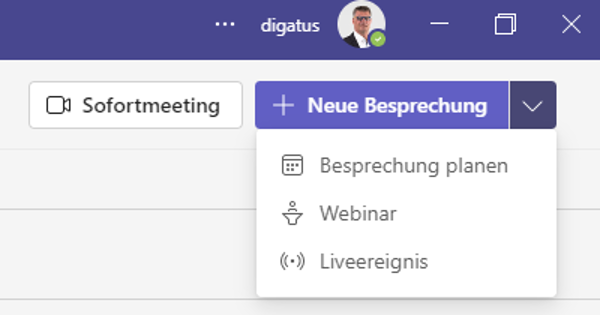
How it looks in MS Teams: In the first step, select the arrow to the right of “New meeting” in the Teams calendar and then select “Webinar.”
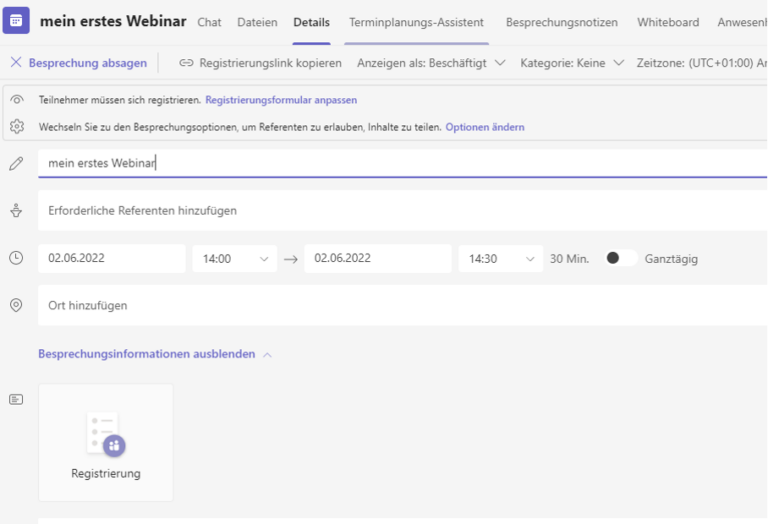
By default, the webinar is accessible to everyone. You can change this setting in
To customize the registration form, select “View registration form”.
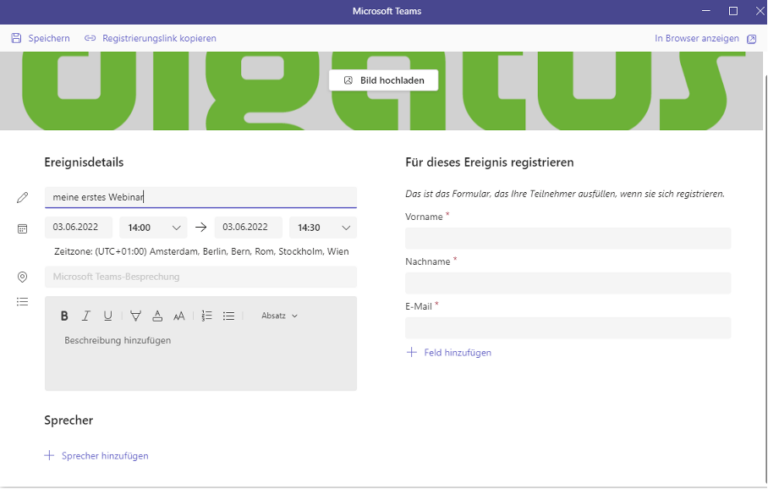
The registration form for participants
These form details are displayed to all people who are invited to the webinar.
- Add the title and start time of the webinar for the participants.
- Add details about the webinar.
- Add the names of the speakers and other information.
An image can also be uploaded, which serves as a banner graphic on the form.
The registration form has some fixed fields, such as name and email address. Select “Add field” to add more individual fields and thus query further data.
Activate the check box if you want to make a field mandatory. The form can be used to collect useful information for e.g. sales contacts after the webinar or to measure the effectiveness of the training.
4. Select “Copy registration link” to use this link in your invitations and when announcing your webinar. This can be done on social media, on a website, via email, or in other ways.
5. Select “Save” and check the registration form.
6. Close the registration form and select “Send” to send the invitation to the speakers and organizers.
The registration report shows who has registered and how the registration questions were answered.
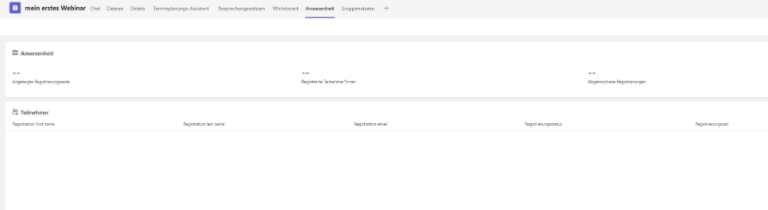
The attendance report lists the participants and the duration of their attendance.
2. Block additional participants from a Teams meeting
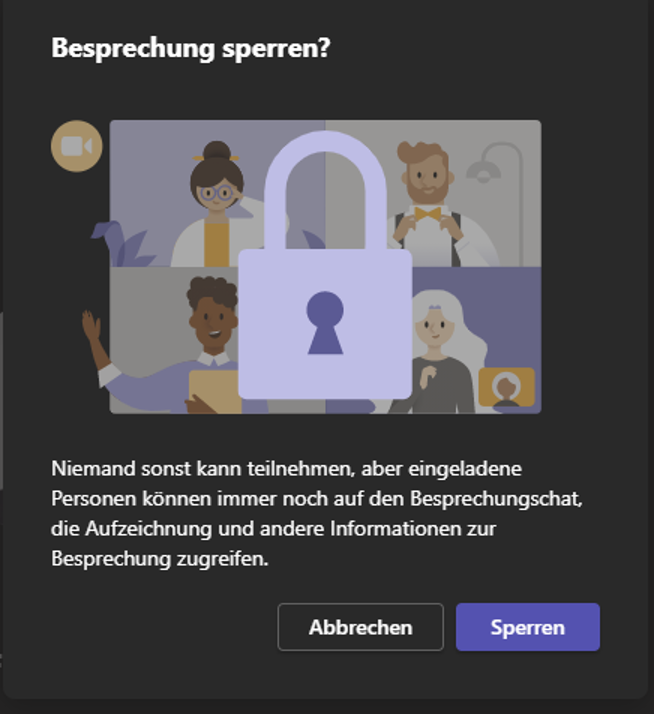
You have a meeting with several participants, but at the beginning or end of the meeting you want to make sure that only those present participate in the meeting. In this case, you have the option to block further access.
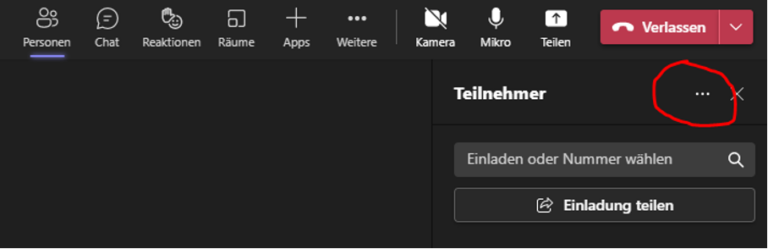
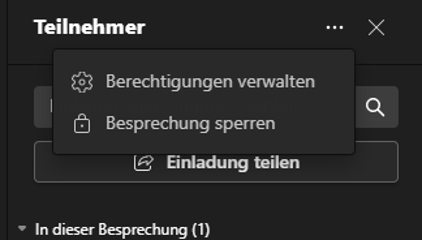
To do this, go to the Participants area in the meeting and select the three dots (…), which will display the option “Lock meeting”.
3. Translate a PowerPoint slide into another language during a Teams presentation
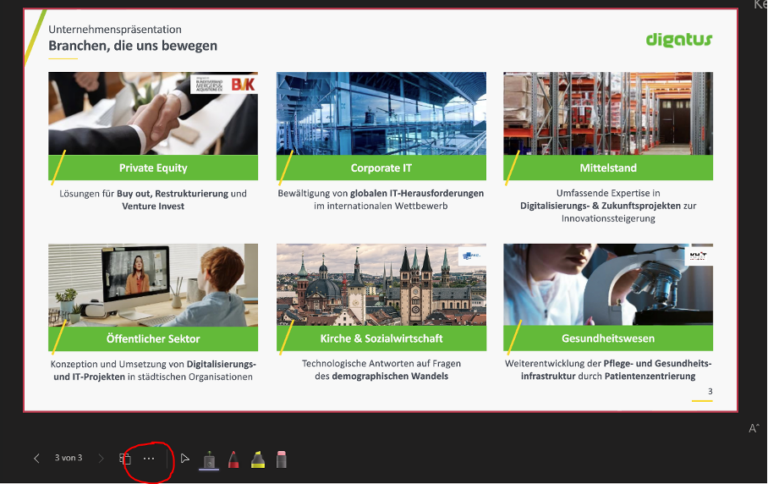
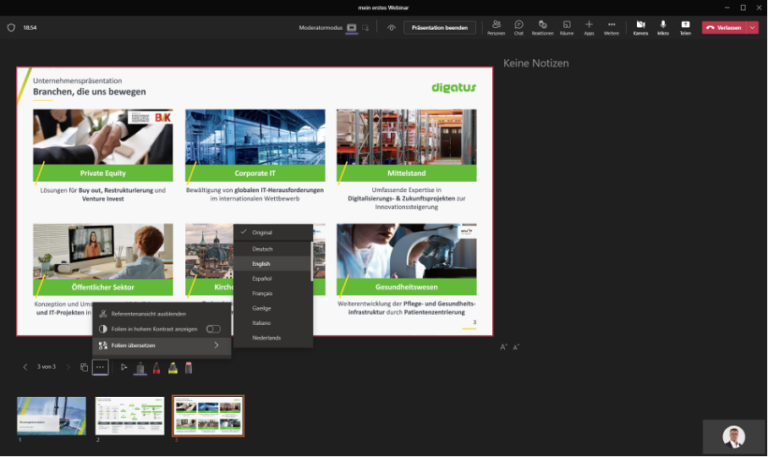
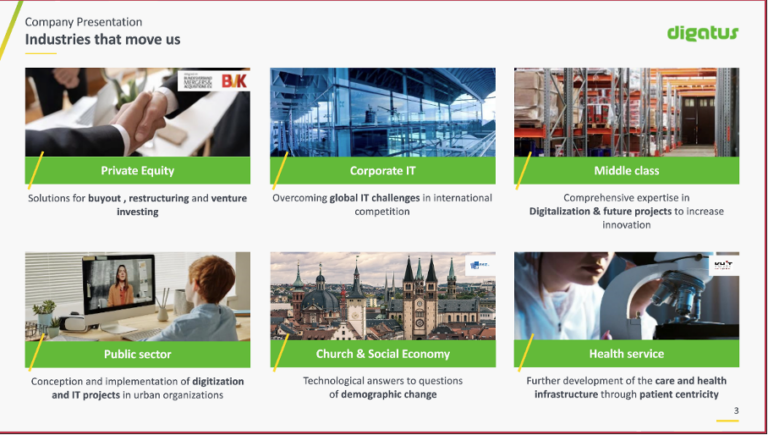
You have prepared slides for a Teams meeting – since it was assumed that only German-speaking participants would be present, the slides were created in German. During the meeting, it turns out that English-speaking colleagues are also participating.
When selecting the three dots (…), simply select the option “Translate slide” and set the desired language.
4. Subtitles and transcription for Teams Meetings
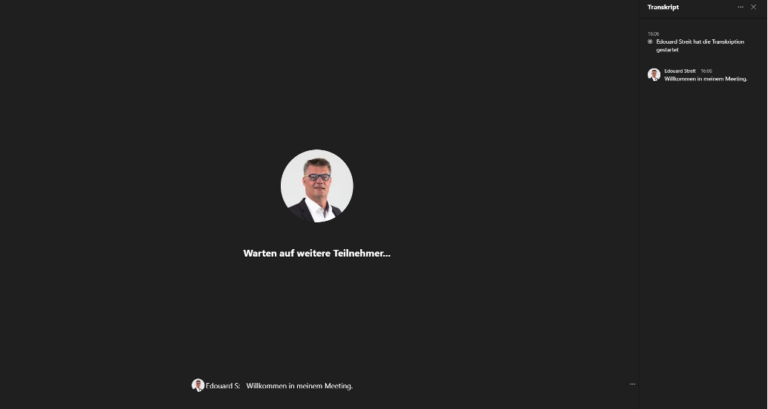
Live subtitles can be activated in Microsoft Teams Meetings. These live transcripts offer the possibility to follow in real time what was said and who said it. After a meeting, the transcript file is automatically saved in the chat tab for that meeting. This feature is currently only available in English.
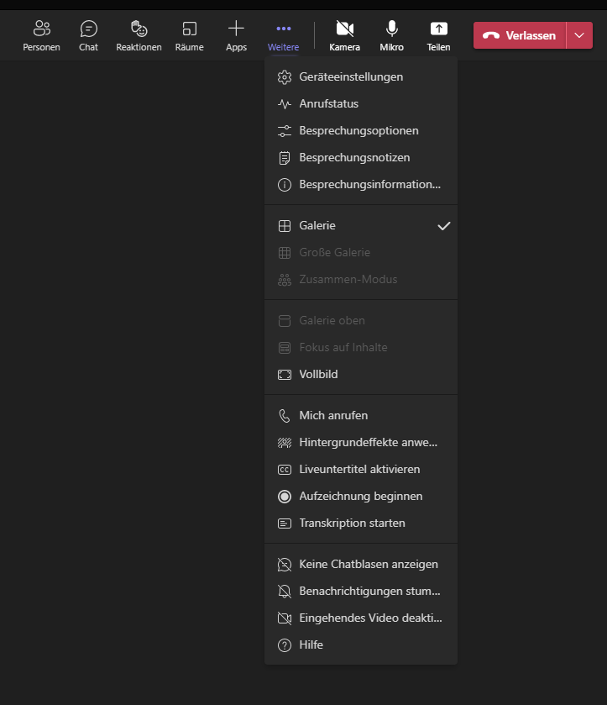
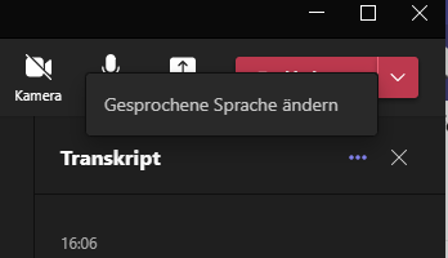
Here in the menu item “More” the live subtitles as well as the transcription can be started. The language that is spoken should always be set. For data protection reasons, please always inform the participants about the start of the recording.
The spoken words are displayed as subtitles, as well as for the transcript.
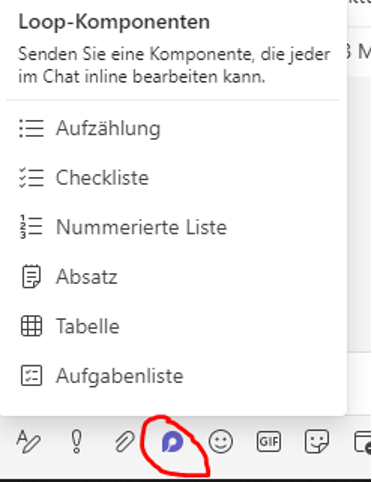
5. Task list in Teams chat
Create shared task lists in any group chat to manage large and small projects together. Add new entries to the list, assign tasks, set due dates, and check off completed tasks.
This link can also be shared and edited with people outside the chat.
Conclusion:
In fact, Teams has even become a central point of contact for all Microsoft Cloud collaboration tools. Whether it’s scheduling, task management, collaborative editing of files, or reading company news on the intranet, Microsoft Teams is the central entry point for everything. With PowerApps, even company-owned processes can be individually mapped and integrated. The continuous development on the part of Microsoft makes Teams the central building block for everyday work and communication in the team.
Edouard Streit
He uses his many years of experience in the IT field for the successful implementation of various customer projects. He primarily focuses on the use of innovative tools and applications. In doing so, he concentrates on various Office 365 tools, such as Microsoft SharePoint or Power Automate.